Source Code
PAMGuard Source Code
PAMGUARD is open source software licensed under the GNU General Public License V3.0 from the Free Software Foundation.
PAMGuard is mostly written in Java which provides a good balance between speed, flexibility, and ease of development.
Interfaces to external instruments, for example National Instruments data acquisition devices, are often written in C/C++ and accessed from the Java code using the Java Native Interface or use Java Native Access to communicate with device manufacturers C libraries. These can be built using the Community Edition of Visual Studio.
All PAMGuard source code is available on GitHub.
Use of Eclipse
Many PAMGuard developers use the Eclipse IDE for code development. This guide shows users how to import PAMGuard into Eclipse and get it running. Other IDE’s will follow similar lines.
Setting PAMGuard up in Eclipse
There are several ways to open the code with Eclipse. The first stage is to import the project. There are two options for this.
Option 1: Using GitHub Desktop
- Install: Ensure the GitHub Desktop application is installed.
- Clone: From the GitHub webpage, click the green ‘Code’ button and select ‘Open with GitHub desktop’.
- Local Path: Choose a local path on your computer and press ‘Clone’.
- Import: In Eclipse, select File > Import > Existing Projects into workspace. Enter the repository path and click Finish.
Option 2: Using EGit (Direct Import)
- Select File > Import > Projects from Git.
- Hit Next and select ‘Clone URI’.
- Copy your repository URL into the URI field; other fields should auto-fill.
- Authentication: If you have password issues, you may need to create a Personal Access Token on GitHub to use in place of a regular password.
- Branch: Select the ‘main’ branch.
- Local Destination: Select your local storage directory.
- Wizard: Select the option to ‘Import existing Eclipse projects’.
Running PAMGuard
To run PAMGuard in Eclipse you need to create a new Java run configuration. Click on the drop down menu of the green run arrow in Eclipse. Select Run Configurations. In the project field select the PAMGuard project. In the main class field enter PamGuard.PamGuard. Next go to the arguments tab.
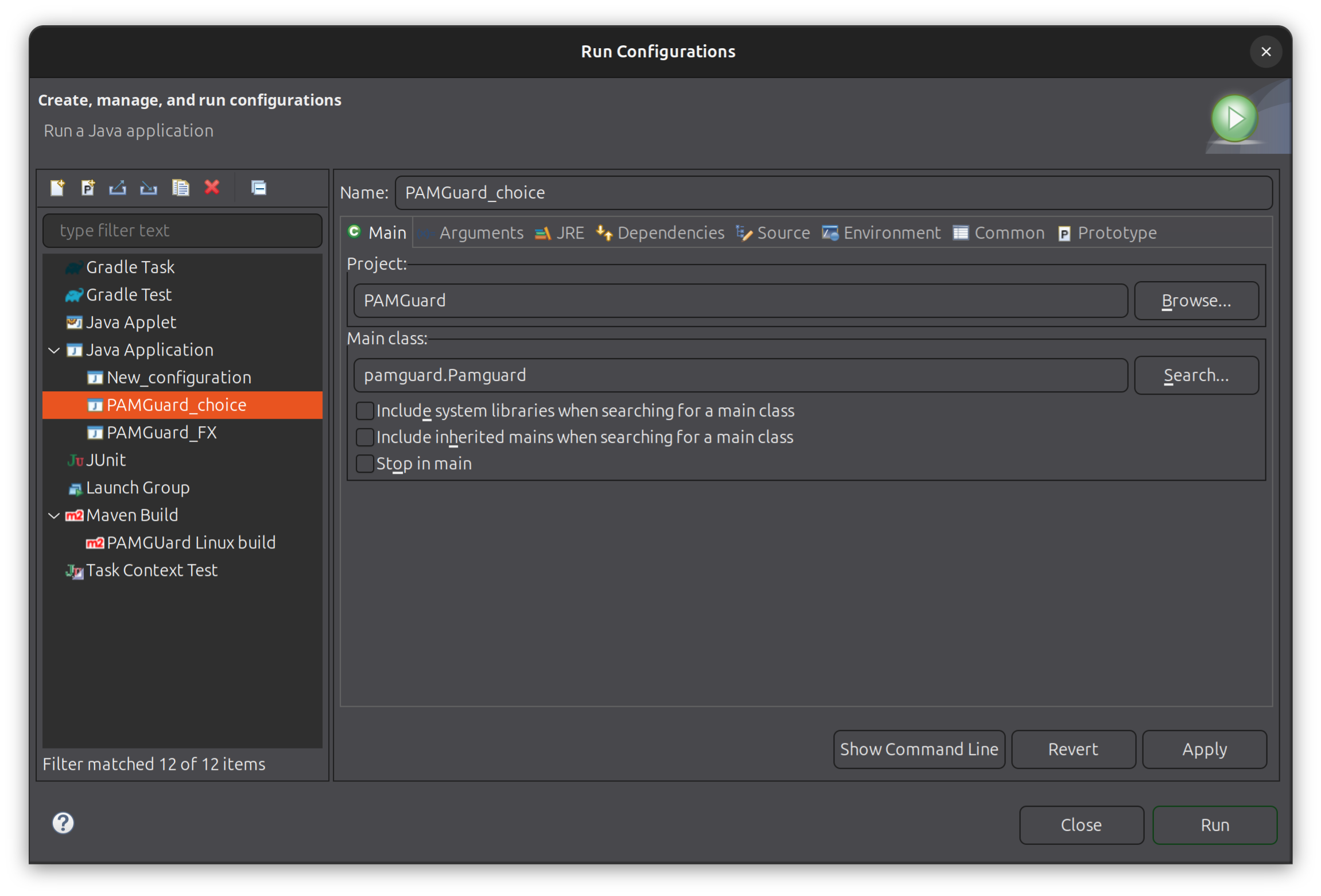
The run configuration dialog in Eclipse set up to run PAMGuard.
The arguments tab contains two fields, the program arguments and the VM arguments. The program arguments are passed to the main method of the PamGuard class and are used to specify the settings PAMGuard uses. For example, if you want to start PAMGuard in viewer mode you would add -v to the program arguments.
The VM arguments are passed to the Java Virtual Machine and are used to specify core Java settings, such as the maximum amount of memory that can be used etc. These arguments are platform specific.
For Windows, we need to define the maximum memory allowed for the Java virtual machine and point Java to a library that allows access the National Instruments data acquisition devices and other external soundcards. The VM arguments for Windows are;
-Xmx8192m
-Djava.library.path=lib64
In macOS, only standard soundcards are supported and so there is no need for a lib folder. The VM arguments for macOS are;
-Xmx8192mLinux has it’s own lib folder liblinuxand there are also various scaling issues that need to be sorted. The VM arguments for Linux are;
-Xmx8192m
-Djava.library.path=liblinux
-Dsun.java2d.uiScale=2
-Dawt.useSystemAAFontSettings=on
-Dswing.aatext=true
Note that -Dsun.java2d.uiScale=2 works well for scaling PAMGuard on Ubuntu with a 4k screen. It may need to be changed depending on your system.
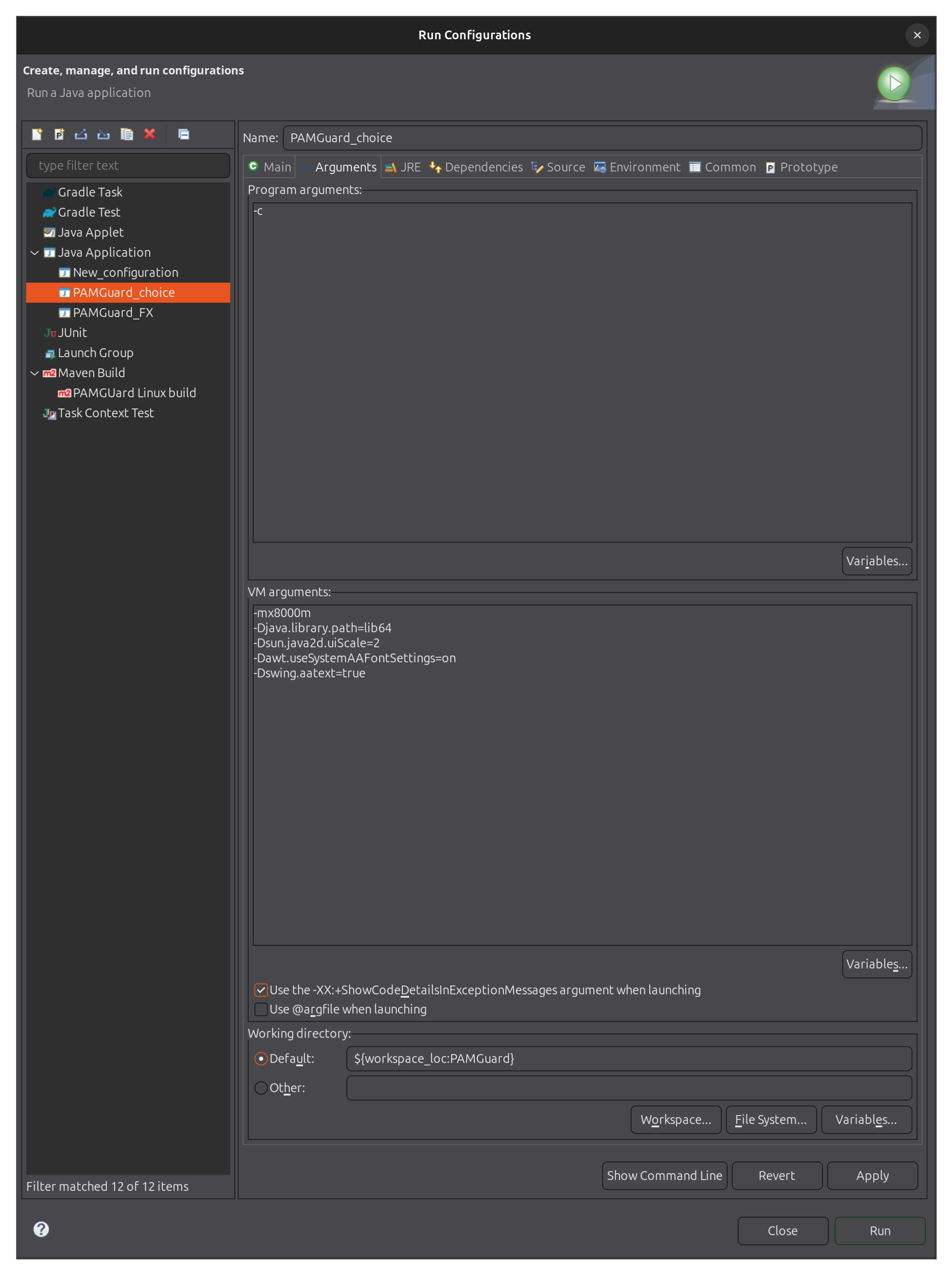
The run configuration dialog in Eclipse set up to run PAMGuard.
Maven
Building PAMGuard
PAMGuard is built using Maven. The Maven pom.xml is extensive and includes code to build installers for macOS and Linux as well as packaging dependencies into a jar file, removing files that interfere with deep learning models etc. The Maven commands for building PAMGuard depend on the platform. Building a runnable jar for any platform uses the same Maven goals
mvn clean package shade:shadeThere are also platform dependent commands for building installers
Maven builds a signed.dmg file for macOS which can be used on Apple Silicon based devices. The installer is signed but this requires an Apple Developer account. PAMGuard also needs to be submitted to Apple and further signed before it can be distributed. This is all handled in the pom.xml file.
mvn clean package shade:shade macosappbundler:bundle exec:exec@sign-appor if you do not wish to sign the app.
mvn clean package shade:shade macosappbundler:bundleMaven builds a .deb file for Linux which can be used on Ubuntu and other Debian based systems. The .deb installer will only work if the following maven commands is used. Note that a .deb file will be created during a normal build but will not have the correct jar file with dependencies.
mvn clean package shade:shade org.vafer:jdeb:jdebIssues
JavaFX
There are issues with certain Maven repositories interfering with JavaFX
- Locate pom.xml: Find and edit the
pom.xmlfile - The Fix:
- Find the “Repo for Jamie’s code” near line 250
- Comment out this repository section
- Perform a Maven update
- Uncomment the repository and update Maven again
JPAM
jpam is a deep learning library that PAMGuard uses. It is available on Maven Central but, the latest dev version of PAMGuard may use a version of JPam that is not yet on Maven Central. This means that to build PAMGuard you need to first build and install the correct version of jpam. The jpam code is available on GitHub here.
Clone the project and import the project and all the sub projects into Eclipse. Then run mvn clean install to install to your local machine. PAMGuard will then be able to find the correct version of jpam when you build PAMGuard.
Assistance
Information on the PAMGuard API and on how to make PAMGuard modules and plug-ins is available on this web site.
The PAMGuard team have limited time to spend assisting developers unless the development project is in line with the interests of our current sponsors.